View Animated Weapons Set | Cursed Bones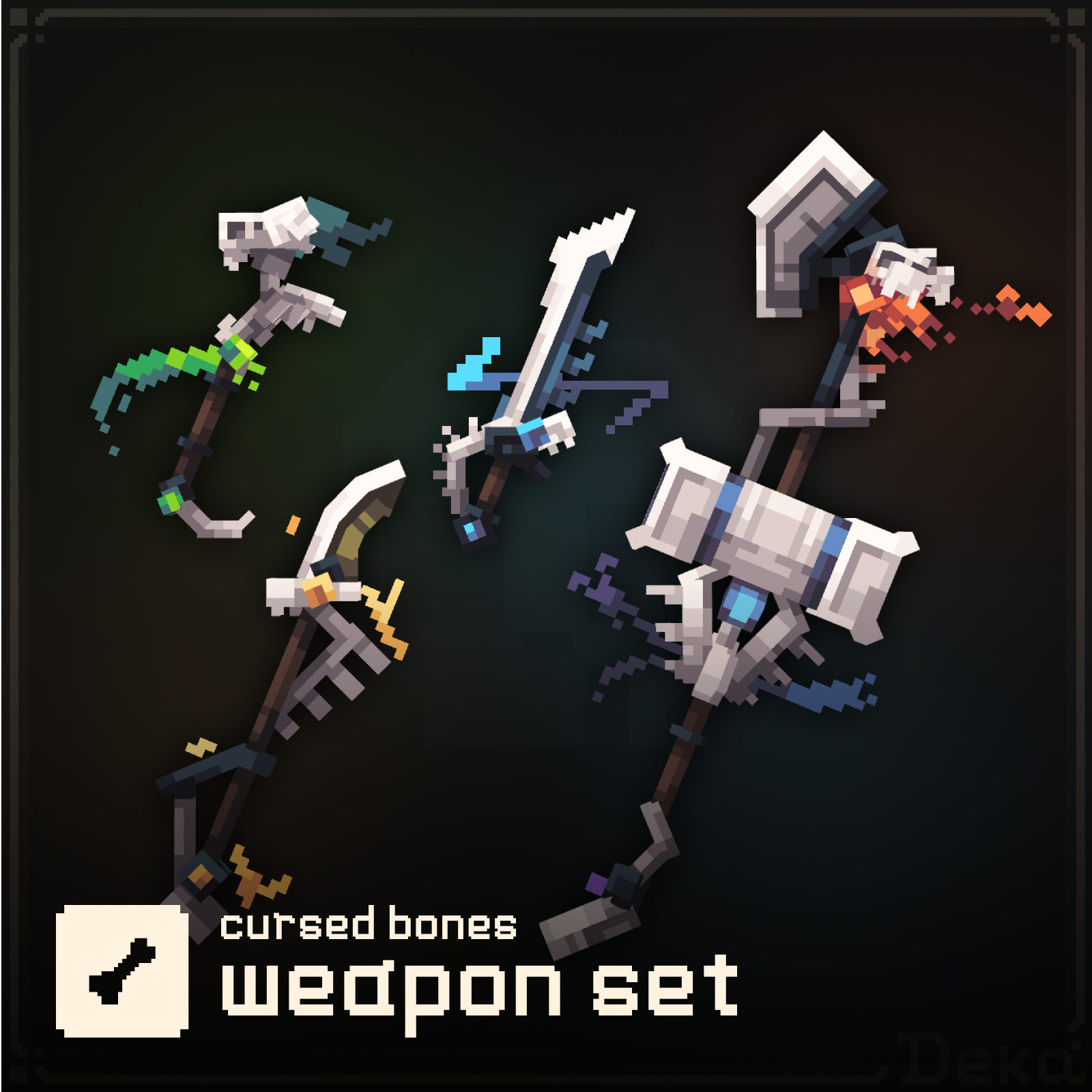


NEW!
Animated Weapons Set | Cursed Bones
No Rating
Price is: $7.99.
Animated Weapons Set | Cursed Bones
If you want to add new sounds or music, you will need a .ogg file. You can use any software or converter online to take care of this if you have an .mp3 file instead.
All you need to do is put your .ogg file in a secounds folder inside of the minecraft directory like so;
📁resource_pack
└── 📁assets
          └── 📁minecraft
                    └── 📁sounds
                              └── 📁custom
└── 📑arcade_music.oggOnce your .ogg file is in the pack, you need to make sure the pack is able to read the file. For this you will need to create a sounds.json file and place it inside your minecraft directory like so;
📁resource_pack
└── 📁assets
          └── 📁minecraft
                    └── 📑sounds.json
Inside of your sounds.json you will create something like this;
{
  "custom.arcade_music": {
    "sounds": [
      "custom/arcade_music"
    ]
  }
}
custom.arcade_music | The name of your sound that will display in game. This does not need a prefix like |
sounds | The files for this sound. |
custom/arcade_music | The path of our .ogg sound file. |
Your sound is now implemented and ready to use in game. To play your sound, use the following command:
/playsound minecraft:custom.arcade_music master @p
You can replace the sound name with whatever you specified for your sound name in the sounds.json file.
We use cookies and similar technologies to ensure you get the best experience on our website.